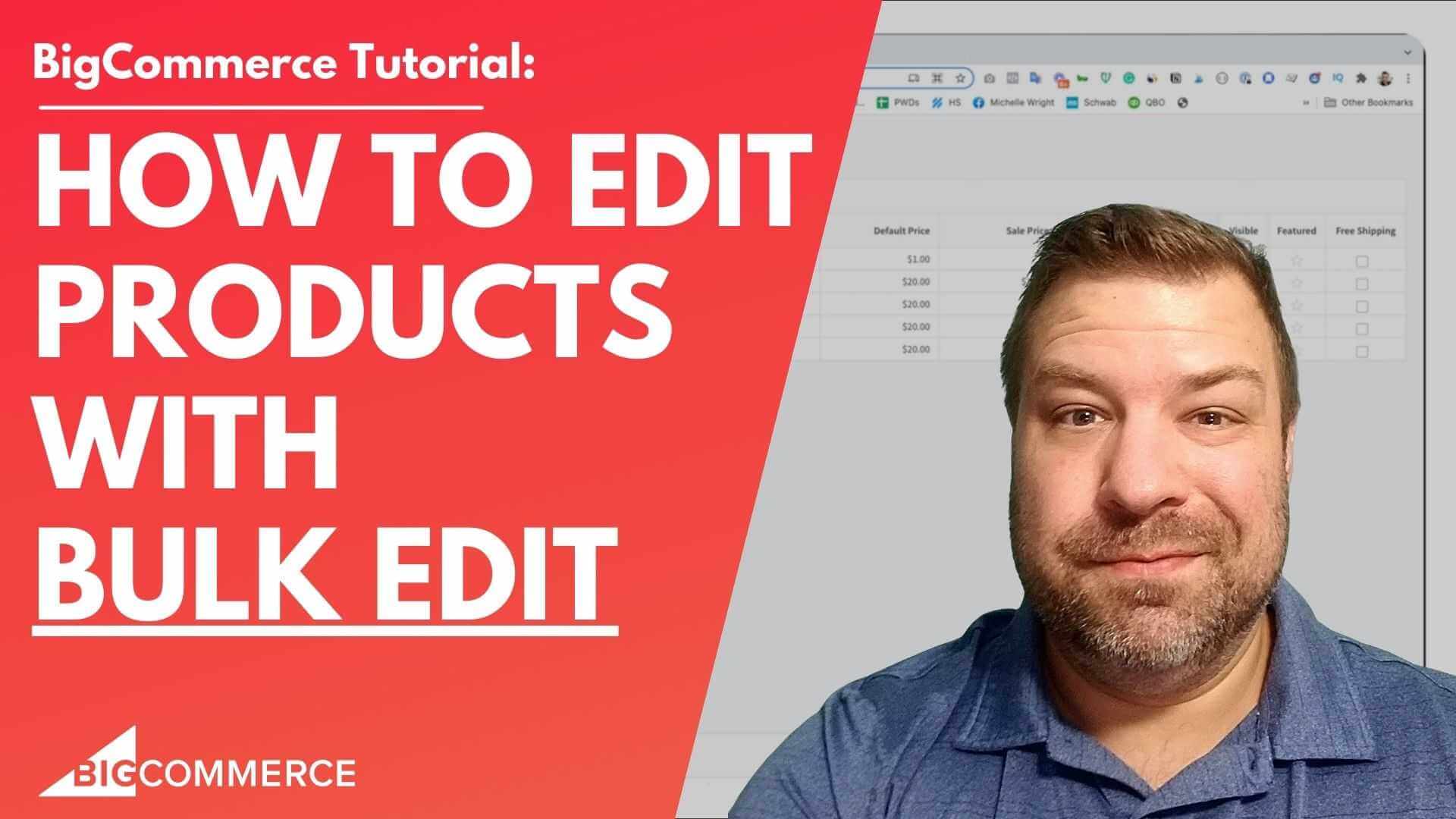
Managing product updates on BigCommerce can be time-consuming, especially if you’re editing one product at a time. Fortunately, BigCommerce offers a powerful bulk editing tool that simplifies this process. In this video, I’ll show you how to make mass changes to your products in BigCommerce, no CSV files required.
Why Use the Bulk Edit Tool?
Whether you’re updating pricing, managing stock levels, or categorizing products, the Bulk Edit Tool saves you valuable time by allowing you to edit up to 100 products at once. In the video, I walk through this step-by-step, sharing tips on how to maximize its efficiency.
Watch the video below to learn how you can streamline your product management and make bulk updates quickly.
Key Takeaways from the Video:
Here’s a quick summary of the video, with helpful timestamps for key sections:
- Introduction to Bulk Edit Tool (00:02)
I introduce the bulk edit feature in BigCommerce and explain how it eliminates the need for exporting and re-importing products via CSV files. - Selecting Products for Bulk Edit (01:06)
Learn how to filter and select up to 100 products at a time for editing, including how to use category filtering to focus on specific product sets. - How to Perform Bulk Edits (02:14)
I walk through editing product details like categories, sale prices, and inventory levels, demonstrating how to apply changes across multiple products at once. - Using Copy-Paste and Drag to Edit (02:47)
See how to use convenient features like copy-pasting and dragging to apply edits to multiple products, just like in a spreadsheet. - Finalizing and Saving Changes (04:58)
After making edits, it’s crucial to save your changes. I emphasize how to properly finalize updates so your changes take effect in your BigCommerce store.
Why This Video Is a Must-Watch
If you’re a BigCommerce store owner looking for ways to save time on product management, this video will show you exactly how to leverage the Bulk Edit Tool. Whether you’re adjusting prices or managing product visibility, this method is efficient and easy to follow.
Don’t miss out—watch the video and start streamlining your product updates today!
Full Transcript
(00:02)
Hey there! Are you looking for an easy way to edit your BigCommerce products in bulk?
In the last video, I went over how to do this with the CSV method, which involves exporting your products to CSV and then re-importing them. In this video, I’m going to cover how to use BigCommerce’s bulk edit feature so you can edit without having to import and export at all.
(00:32)
Before we get started, my name is Kal.
I’m a developer, a store owner, and I run an e-commerce community called “E-commerce Growth” for store owners just like you and me. Each week, I post e-commerce videos, so if you find this one useful, subscribe and hit the bell so you don’t miss any of my future content.
Alright, let’s dive into the bulk edit feature! I’ll also include a link in the description to the CSV method video in case you prefer that. Now, let me share my screen and show you how it works.
(01:06)
This is a BigCommerce sandbox that I’m using. If I go into View Products, I can obviously click into any product and edit it one at a time—but that’s not what we’re doing in this video. Let me show you how to edit multiple products at once.
(01:42)
One limitation to note: You can only edit up to 100 products at a time.
The trick is to create a targeted search to identify the products you want to edit, in chunks of 100 or fewer. In this store, I only have 46 products, so I can check the box to select them all.
For example, if I only wanted to edit products in a specific category, I could go to Products > Product Categories, select the category, click the ellipses, and go to Products. This filters the view to just those products.
(02:14)
Once you have the products you want to edit, check the checkbox to select all items in your current view. Then, go up to Choose Action, select Bulk Edit, and confirm.
This takes you to a spreadsheet-like screen with cool features, like copy-paste (Ctrl + C, Ctrl + V), drag-to-edit, and double-click editing.
(02:47)
Notice that not all fields are available for bulk editing—things like Custom Fields don’t show up here.
However, you can edit fields like Product Name, Brand, Categories, SKU, UPC, Price, Sales Price, Inventory Tracking, Stock Level, Visibility, Featured Status, and Free Shipping on a product level.
(03:16)
For example, let’s say we want to add all of these products, currently in the Apparel category, to the Gear category as well.
To do this, click Edit for the top item, save it, then drag down the little dot in the corner—just like in Google Sheets—to apply that change to all items in the list.
If you want to remove them from a category or adjust other values, you can do the same thing. For example, if I want to set all the Sale Prices to $15, I can edit one and drag down to apply that change to all selected items.
(04:26)
This method is particularly useful if what you need to edit fits into one of these columns. It allows you to make bulk changes without needing to export or import data.
For example, if you want to feature a bunch of products, just hit the star icon, and all selected items will be featured.
(04:58)
Important: Don’t forget to click Save at the end to apply your changes live.
I use this feature a lot for managing categories and featuring products. While I don’t use the Sale Price option as often, it’s still there if needed.
This method is also handy for filling in missing information, like a brand name. For example, if I forgot to add a brand, I could come in here and set the brand to “Camper Light” for all selected products.
(05:25)
I hope you find this bulk edit method helpful!
If you did, please hit the like button, and be sure to check out our free community of store owners at ecommercegrowth.com. If you’re looking for a dev team, consider my business at epicdesignlabs.com—maybe we’re a good fit! Reach out, and let’s chat.
I’m always looking for new ways to help e-commerce store owners like you. If you have any challenges, leave me a comment, or just drop a note to say hi. Thanks for watching, and I’ll see you next time!

Related Resources
View All →
3 ways to Add or Edit a Carousel on BigCommerce
If you’re looking to enhance your BigCommerce store’s design with a sleek carousel or slideshow, you’re in the right place. \[…\]

Add a Free Gift with Purchase on BigCommerce
Looking for a way to boost customer loyalty and increase sales on your BigCommerce store? Offering a free gift with \[…\]

Add Products to the Homepage of Your BigCommerce Store
In this video tutorial, I walk you through two simple ways to add products to your BigCommerce store homepage, helping \[…\]

BigCommerce Sitemaps 101
Are you ready to supercharge your BigCommerce store’s SEO? If you’ve ever wondered about the ins and outs of sitemaps \[…\]

Edit the Newsletter Optin Block on BigCommerce
Are you looking to customize the “Subscribe to our Newsletter” box on your BigCommerce store? In this video, I walk \[…\]
Editing Custom Fields via CSV in BigCommerce
Are you looking to efficiently manage custom fields for your products in BigCommerce? Editing via CSV is a powerful method \[…\]
Editing Products via CSV in BigCommerce
Managing products in your BigCommerce store can become overwhelming as your inventory grows, but CSV editing makes bulk updates quick \[…\]

Getting Started with Product Images on BigCommerce
Are you struggling to upload product images to your BigCommerce store? In this video, Kal Wiggins, an ecommerce expert and \[…\]

High-Risk Permissions in BigCommerce
BigCommerce has continuously provided merchants with tools to bolster sales staff their e-commerce stores. One of the latest features to \[…\]