Are you looking to customize the “Subscribe to our Newsletter” box on your BigCommerce store? In this video, I walk you through how to easily find and edit this section to better match your brand. Whether you want to change the text, button design, or replace it entirely with a Klaviyo form, this guide has you covered.
As an experienced BigCommerce developer, I’ve been working on stores since 2010, so you can count on this video for straightforward, actionable advice.
Why Watch This Video?
- No Fluff, Just Facts – You’ll get the exact steps to edit your newsletter block without any unnecessary details.
- Save Time – Skip the trial and error; this guide shows you where the file is located and how to make changes fast.
- Optimize Your Store – Whether you’re using the default BigCommerce form or upgrading to Klaviyo, this video will help you set up a better opt-in experience for your customers.
If you’re serious about improving your store’s email marketing, this tutorial will help you get there quickly.
[Watch the full video here!]
Key Takeaways From the Video:
- (00:00) Introduction: I explain how to access the “Subscribe to our Newsletter” box in your BigCommerce store. Ensure you’re on a custom theme to be able to make changes.
- (01:02) Locating the file: The newsletter block is found in the templates > components > common > footer folder. From here, you can access the subscription-form.html file.
- (02:51) Language variables: The text you see on the front end is pulled from the en.json language file, which allows for easy text changes and future multi-language compatibility.
- (03:26) How to edit: You can either edit the en.json file or the subscription-form.html file to modify text and button labels. Editing the en.json file is recommended for future-proofing.
- (04:39) Use Klaviyo: For serious store owners, I suggest using Klaviyo for email marketing. It lets you capture email and SMS sign-ups in one form, offering more flexibility and effectiveness.
Conclusion
This video tutorial is a quick, reliable guide for making your BigCommerce newsletter sign-up form more effective and customizable. If you’re looking to enhance your store’s opt-in experience, this is the best place to start.
Full Transcript
(00:00)
Hey, are you guys trying to edit your “Subscribe to our Newsletter” box on your BigCommerce store? Let me show you how to find it.
My name is Kal, and before we get started, I’m a store owner, developer, and I’ve been building BigCommerce stores since 2010. I’m here to help you guys out. Let me share my screen to show you where to locate this block.
So, we’re talking about this block down here. At least on the Cornerstone theme, it’s in kind of an ugly spot and doesn’t look that great. You may want to change the text, the button, or whatever.
(00:30)
To customize this, make sure you’re on a custom theme, as you can’t edit a default theme. Assuming you’ve already cloned your theme, click on Edit Theme Files. This will take you to the theme editor.
By default, you’ll be on the homepage. Now, if we scroll down, the template file you’re looking for is located under:
templates > components > common > footer
This is where all the footer stuff is, including the newsletter box itself.
(01:02)
In this section, you’ll see the last column in your theme where it checks if the “show newsletter box” is turned on. If it is, it calls this component:
components > common > subscription form
You’re already in the “common” folder, so scroll down to subscription-form.html. This file contains the guts of the newsletter opt-in form.
Now, you can either turn this off or replace it with something else. For example, you could replace it with a Klaviyo opt-in, which I highly recommend if you’re serious about your store. (If you need help setting that up, reach out to me and my team at Epic Design Labs.)
If you want to keep the native form, this is where you find it:
templates > components > common > subscription-form.html
(02:20)
Here, you’ll see an <h3> tag for the heading, which refers to lang.newsletter_subscribe. Below that, there’s a paragraph tag for the intro text, which refers to lang.newsletter_subscribe_intro.
You may wonder why these are called language variables instead of just regular text. On the front end, you see:
Subscribe to our newsletter
Get the latest updates on new products and upcoming sales
But in the code, it looks different because it’s pulling text from the language file.
(02:51)
You can find the language file under:
language > en.json
Most of you will be using the en.json file as your default language. There are other language files available if you’ve enabled multi-language support. For this example, we’re focusing on English.
I’m going to search for “newsletter” in the en.json file by doing a Ctrl + F to locate it quickly.
(03:26)
You’ll see a few occurrences of the word “newsletter” in the file. When we scroll through, we find this block of code that contains the settings for the text:
Subscribe to our newsletter
Get the latest updates on new products and upcoming sales
If you want to change the wording of these, you can edit them directly in the en.json file and hit save.
To change the heading: edit it here.
To change the sub-line text: edit it here.
To change the button text: edit it here.
(04:04)
Alternatively, you could go into the subscription-form.html file and manually edit the text, but the en.json file is technically the right place to change it. This ensures future multi-language support remains intact.
(04:39)
If you’re serious about your store, you should consider using Klaviyo for email marketing instead of the native BigCommerce form. Klaviyo’s form allows you to collect both email and SMS signups simultaneously, which is a nice feature.
That’s why I usually swap out the native form for a Klaviyo form on my sites.
(05:09)
So, that’s how you find the newsletter opt-in form and how you edit it. If you have any questions I didn’t answer, or if you’re stuck on something else, leave a comment below. I’d really appreciate it if you subscribe for more tips!
If you need a developer for your site, reach out to me and my team at Epic Design Labs.
Thanks, and talk soon!

Related Resources
View All →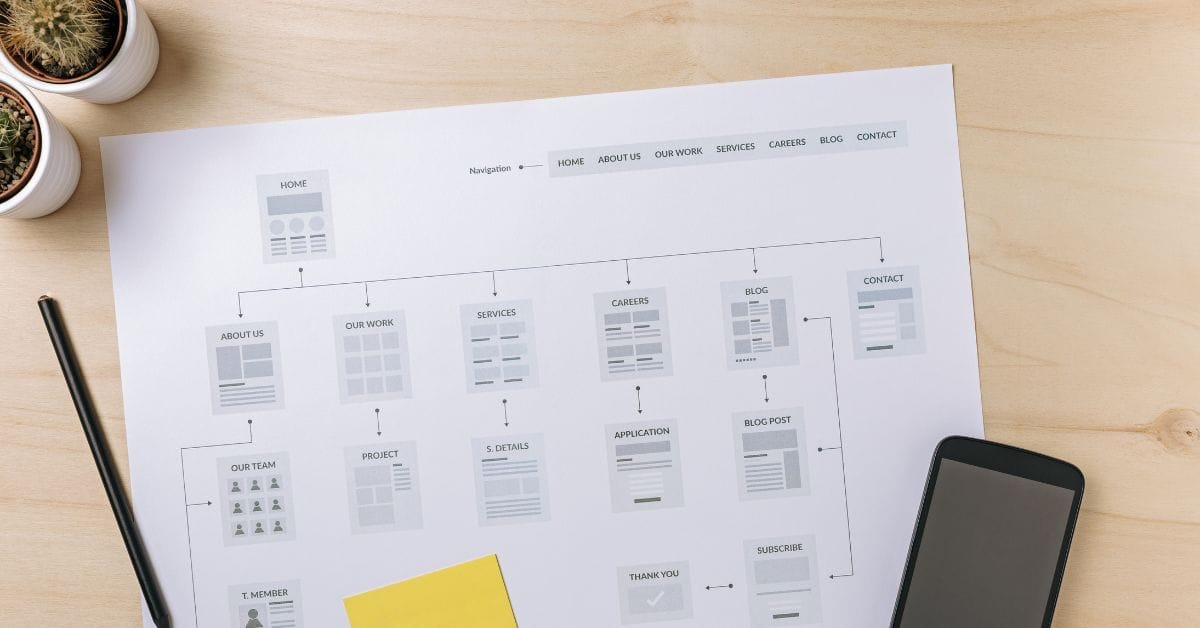
Where is the Sitemap on BigCommerce?
Are you trying to find your sitemap on BigCommerce but aren’t sure where to look? Whether you’re submitting your sitemap \[…\]
What size should your hero image be
In the vast realm of e-commerce, mobile images and web desChoosing the right size for your hero image is crucial \[…\]
What is the BigCommerce API
If you’ve been working in ecommerce, especially with BigCommerce, you’ve probably heard the term “API” thrown around. But what exactly \[…\]
What is BigCommerce Stencil?
If you are still using the BigCommerce Blueprint theme framework, it’s high time that you switched over to their new \[…\]
Welcome to Epic Page Builder Widgets
If you’re running an ecommerce store on BigCommerce, streamlining your page design without the constant need for developers is crucial. \[…\]
Stencil Local Development – Walkthrough
If you’re looking to develop on BigCommerce, using Stencil Local Development is a game-changer. In this video, I walk you \[…\]
Remove Powered by BigCommerce Link
If you’re running a BigCommerce store and want to remove the Powered by BigCommerce link at the bottom of your \[…\]
Page Builder Fields In Raw HTML BigCommerce Page Template
Are you trying to create custom landing pages on BigCommerce but struggling with how to use Page Builder fields in \[…\]
Most Popular Products on BigCommerce
Understanding Top Sellers and Customizing Your Store If you’re wondering how to display BigCommerce’s most popular products feed on your \[…\]