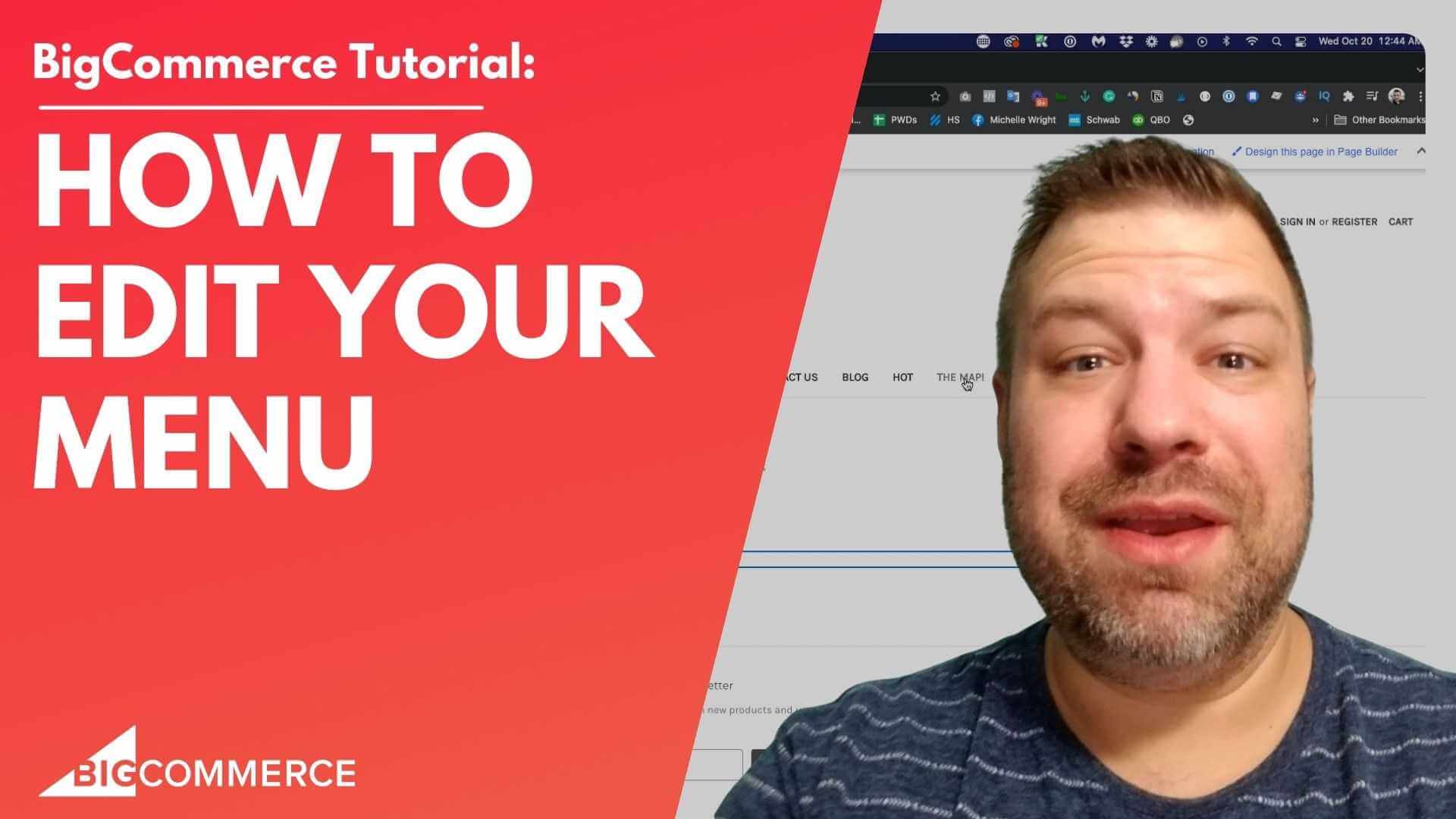
If you’re running an ecommerce store on BigCommerce, optimizing your menu is crucial for a smooth user experience. Your menu is the primary way customers navigate your site, and having a well-structured, functional menu can make all the difference in conversions.
In this video, I walk you through various ways to edit your BigCommerce menu, covering everything from managing category visibility to using custom widgets for a more dynamic menu system. Whether you’re looking to update product categories, create a special “Sale” section, or add links to your web pages, this guide will show you how to do it.
Why You Should Watch This Video:
- No coding experience required: I explain both the built-in menu tools and more advanced customization options, so you can follow along regardless of your experience level.
- Practical tips: Learn how to improve the organization and functionality of your BigCommerce store’s menu to make it easier for customers to find what they’re looking for.
- Dynamic solutions: I cover methods that allow you to create custom menus and links, offering flexibility and control over how your navigation works.
By the end of this video, you’ll have a strong understanding of how to edit and optimize your BigCommerce menu, improving both the user experience and your site’s performance.
Key Takeaways from the Video:
- Introduction to Menu Editing (00:01)
I introduce the video by explaining what I’ll be covering: how to edit the BigCommerce menu using different methods, including category menus and web pages. - Managing Category Visibility & Nesting Categories (01:48)
Learn how to toggle the visibility of product categories, nest them under one another for a cleaner layout, and control whether or not they appear in the main menu. - Editing the Pages Menu for Custom Links (03:36)
See how to manage web pages like Shipping & Returns and Blog in the menu, and how to add or remove these links without affecting their accessibility. - Using Custom Widgets to Add Dynamic Menus (19:38)
Explore the use of custom widgets like the Epic Page Builder Widgets to create dynamic, editable menus that can be updated site-wide. - Hardcoding Menu Links in the Top Bar and Main Menu (11:15, 23:09)
I dive into the more advanced approach of hardcoding links into the top bar or the main menu by editing theme files likeheader.html.
Ready to Optimize Your BigCommerce Menu?
If you’re ready to take control of your BigCommerce site’s navigation, watch the full video now! Whether you’re a seasoned developer or just getting started, this guide will help you improve your store’s user experience and make navigation easier for your customers.
Full Transcript
(00:01) Introduction
Hello! Are you looking to edit your BigCommerce menu? In this video, I’m going to show you various ways to do that.
Before we get started, my name is Kal. I’m a developer, a store owner, and I run a community for ecommerce store owners called Ecommerce Growth. It’s completely free, and I’ll share the link at the end.
Each week, I post more ecommerce videos on this channel, so if you find this one useful, please subscribe and hit the bell to see even more.
(00:33) Overview of Menu Editing
Let me share my screen and show you different ways to edit menus and add links to your BigCommerce site.
What you’re seeing here is the Cornerstone theme with its default setup. I haven’t made any major changes to the theme, except removing some content in the middle. Let’s start with the built-in menu system that many themes, including Cornerstone, use.
The menu system is dynamic and made up of two parts:
Category Pages Menu: Displays links to your categories.
Pages Menu: Displays links to your website pages.
(01:48) Editing Product Categories in Your Menu
To start, you’ll want to navigate to your store’s admin dashboard by visiting your URL followed by /admin. Once there, head over to Products and select Product Categories.
Here, you can see I have two categories: Category 1 and Category 2, which map directly to the front-end links you see here.
Whether a category shows up in the menu is determined by this green checkmark. For example, if I uncheck Category 1 and refresh the page, it disappears from the menu.
However, be cautious! Hiding a category will make it completely inaccessible, resulting in a 404 error if someone tries to visit it.
(02:23) Nesting Categories for a Cleaner Menu
If you don’t want to hide categories, but still want to clean up your menu, you can nest categories. To nest a category in BigCommerce, simply drag one category beneath another.
For instance, I’ve nested Category 1 under Category 2. If I refresh the page, depending on the theme settings, it will display as a dropdown menu.
If you have trouble displaying dropdowns, it might be an issue with your theme. In that case, you may need to consult a developer, or feel free to reach out to me for assistance.
(03:36) Editing the Web Pages Menu
On the other side of the menu, items like Shipping & Returns, Contact Us, and Blog come from the web pages menu. To access these, go to Storefront > Web Pages in your admin dashboard.
Similar to categories, these web pages are managed through a green checkmark system. If I uncheck Shipping & Returns and refresh the page, it disappears from the menu.
Unlike categories, however, these pages will still be accessible through direct URLs even when removed from the menu.
(04:01) Visibility vs. 404 Errors for Categories vs. Pages
It’s important to note that removing a category from the menu makes it completely inaccessible (resulting in a 404 page), while removing a web page only hides it from the menu — the page remains accessible.
(05:14) Creating Special Categories (Example: Hot Category)
Let’s go through an example where you create a special category. I’m going to create a sale category called Hot.
Go to Categories, create a new category, and name it Hot. This will add it to the category list.
But what if you don’t want it to show up in the category section but instead want it at the end of the menu? Here’s a trick:
Create a “Parent” Category: Make a new category called Special and mark it as not visible.
Nest Your Special Category: Nest the Hot category under Special. Now, it remains visible and accessible, but hidden from the main category list.
To display the Hot category in the pages section of the menu instead, go to Web Pages, create a new page, and link it to /hot/. Now the Hot category appears at the end of your menu.
(06:04) Rearranging Categories and Creating Custom Menu Links
The way the menu system works is that categories appear on the left, and pages appear on the right.
If you want to change the placement, for example, to place the Hot category at the end of the menu instead of in the category section, you can create a dead parent category that hides the category from the main menu while keeping it accessible via URL.
(09:33) Linking to External Sites (e.g., Instagram)
You can also use the link method to add external links to your menu. For instance, you might want to link to your Instagram.
In this case, go to Web Pages, create a new page, and add the full URL to your Instagram. Make sure to use the full URL if you’re linking to an external site.
(11:15) Editing Hardcoded Menu Items in the Top Bar
Some themes, like Cornerstone, have hardcoded links at the top of the page. These are not part of the dynamic menu system and need to be edited in the theme files.
To do this, create a copy of your theme. Go to Advanced > Make a Copy, name the new theme, and apply it. Then go to Advanced > Edit Theme Files.
Look under Templates > Components > Common and open the header.html file. Here, you’ll see the top bar code and the main menu code. For example, you can add a new link next to the Search link by copying one of the existing list items and modifying it as needed.
(17:30) Using the BigCommerce Page Builder to Customize Your Menu
BigCommerce has a Page Builder tool that allows you to visually customize parts of your site. Go to Storefront > My Themes, and click Customize to access the Page Builder.
Here, you can drag and drop widgets into different regions of your site.
There are two types of regions:
Global Regions: Changes here apply across multiple pages.
Page-Specific Regions: Changes here apply only to the page you’re currently editing.
If your theme doesn’t include a global region, you can ask a developer to add one for you. Global regions are useful for adding consistent elements like menus or messages across your entire site.
(19:38) Adding Custom Menus with Widgets
You can also use a custom menu widget from the BigCommerce App Store to add and customize menus easily.
One example is the Epic Page Builder Widgets plugin, which includes a Custom Menu widget. This widget allows you to create custom menus and position them wherever you like on your site.
(23:09) Hardcoding Menu Items in the Main Menu
If you prefer hardcoding a menu item directly into the main menu, you can do that too. For example, go into the header.html file, find the navigation-menu code, and manually add new list items.
Just be sure to follow the structure of existing menu items to ensure consistency with the design.
(25:12) Recap of Menu Editing Techniques
To summarize, today we covered:
Editing the category portion of the main menu.
Editing the web pages portion of the main menu.
Using links to create custom menu items.
Hardcoding menu items in both the top bar and the main menu.
Using the Page Builder and custom widgets to create dynamic, customizable menus.
If you found this helpful, please hit the like button. If you’re interested in joining our free community, visit ecommercegrowth.com.
If you need a dev team for your store, consider us at Epic Design Labs. And if you’re stuck or need help, leave a comment below, and I may cover it in my next video. Thanks for watching!

Related Resources
View All →
3 ways to Add or Edit a Carousel on BigCommerce
If you’re looking to enhance your BigCommerce store’s design with a sleek carousel or slideshow, you’re in the right place. \[…\]
Add a Free Gift with Purchase on BigCommerce
Looking for a way to boost customer loyalty and increase sales on your BigCommerce store? Offering a free gift with \[…\]
Add Products to the Homepage of Your BigCommerce Store
In this video tutorial, I walk you through two simple ways to add products to your BigCommerce store homepage, helping \[…\]
BigCommerce Sitemaps 101
Are you ready to supercharge your BigCommerce store’s SEO? If you’ve ever wondered about the ins and outs of sitemaps \[…\]
Edit the Newsletter Optin Block on BigCommerce
Are you looking to customize the “Subscribe to our Newsletter” box on your BigCommerce store? In this video, I walk \[…\]
Editing Custom Fields via CSV in BigCommerce
Are you looking to efficiently manage custom fields for your products in BigCommerce? Editing via CSV is a powerful method \[…\]
Editing Products via CSV in BigCommerce
Managing products in your BigCommerce store can become overwhelming as your inventory grows, but CSV editing makes bulk updates quick \[…\]
Getting Started with Product Images on BigCommerce
Are you struggling to upload product images to your BigCommerce store? In this video, Kal Wiggins, an ecommerce expert and \[…\]
High-Risk Permissions in BigCommerce
BigCommerce has continuously provided merchants with tools to bolster sales staff their e-commerce stores. One of the latest features to \[…\]