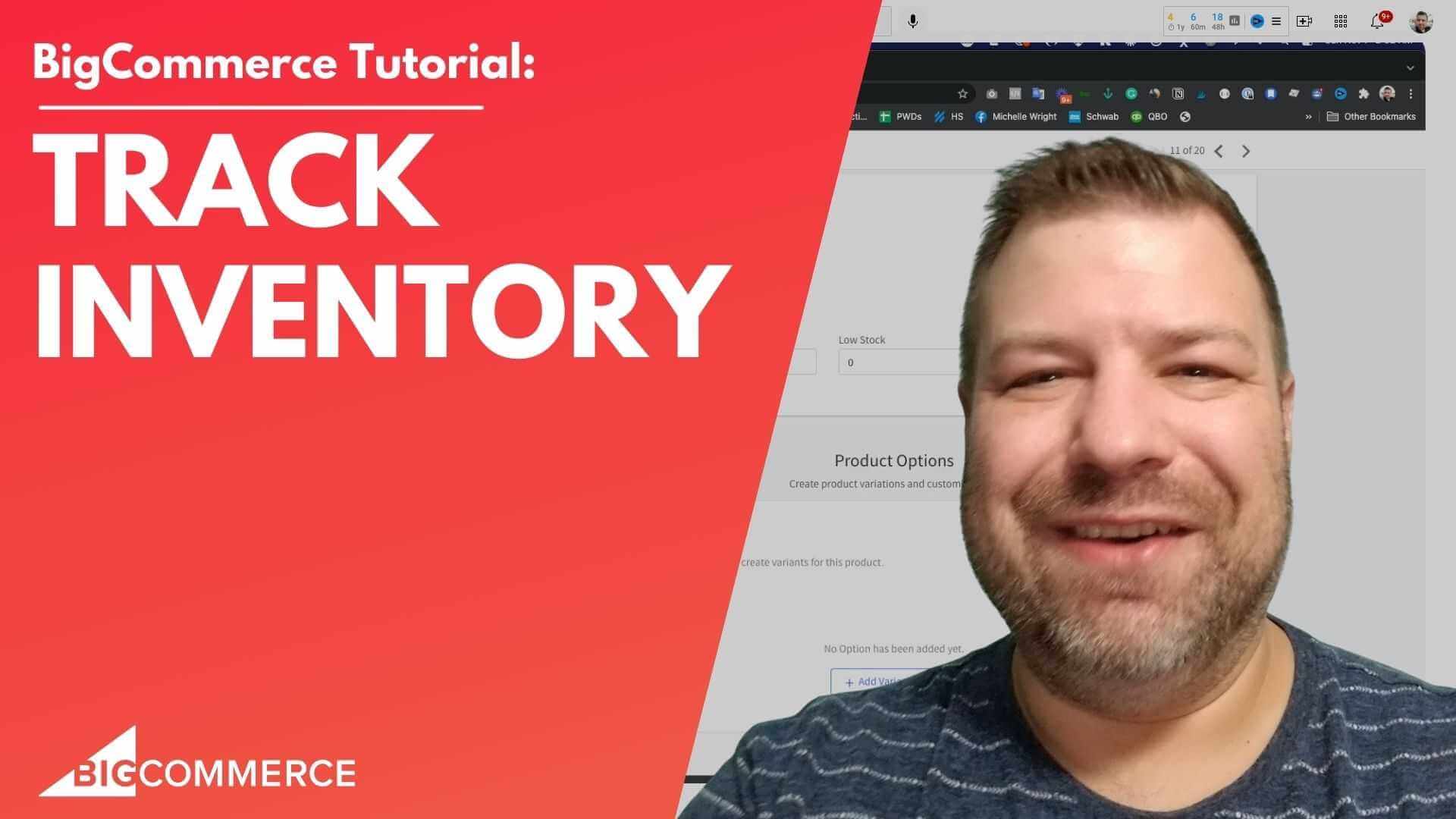
Keeping track of inventory on BigCommerce can be challenging, especially if you sell products with multiple variants. Whether you’re managing stock at the product level or tracking specific variants like size or color, understanding how BigCommerce handles inventory is essential to ensuring smooth operations.
In this video, I walk you through the exact steps to set up and manage your inventory in BigCommerce, whether you’re dealing with simple products or those with multiple variations. If you’re a store owner trying to prevent out-of-stock issues or looking for ways to streamline your inventory management, this video is for you.
Why You Should Watch:
- Get a clear demonstration of how to set up inventory in BigCommerce.
- Learn the difference between product-level and variant-level inventory tracking.
- Understand how to manage out-of-stock items, including hiding unavailable options or redirecting customers.
- Avoid common pitfalls and improve your inventory accuracy with advanced settings.
Key Highlights from the Video:
- Introduction and Inventory Setup(00:01)
- Introduction to the video and step-by-step guide to setting up inventory tracking in BigCommerce. I explain the importance of inventory management for ecommerce store owners.
- Product-Level Inventory Tracking(01:03)
- I demonstrate how to track inventory at the product level and show how the system handles out-of-stock situations by removing the “Add to Cart” button.
- Advanced Inventory Settings(02:19)
- A detailed explanation of advanced settings, including how to hide out-of-stock products, redirect customers to category pages, and adjust stock levels when editing or refunding orders.
- Setting Up Variant-Based Inventory(05:34)
- I walk you through setting up inventory tracking for product variants (e.g., size or color) to ensure that stock is accurately tracked for each variant.
- Handling Out-of-Stock Variants(09:23)
- I explain how to manage out-of-stock variants by marking them as unavailable or hiding them completely from the product page to avoid customer frustration.
If you’re looking to fine-tune your inventory management and make sure your store runs smoothly, check out the full video. It will help you navigate BigCommerce’s inventory system and keep your products well-stocked and organized.
Watch the video now to master inventory management on BigCommerce!
Full Transcript
(00:01)
Hey there! Are you a BigCommerce user and want to track your inventory? In this video, I’m going to show you how to do that. Now, before we get started, my name is Cal. I’m a developer, a store owner, and I also run the Ecommerce Growth Community, which is a free private community for people like you and me doing ecommerce—whether you’re on BigCommerce or not, it doesn’t really matter.
Every week, I post more ecommerce-related videos, so if you find this one useful, subscribe and hit the bell!
(00:30)
Alright, let’s get started! I’m going to share my screen and we’re going to talk about BigCommerce inventory. I’m logged into a store, and I’ve set up a test shirt. You can see it here on the front end of my site—it just says “Test Shirt” and it’s priced at $1. It doesn’t say anything about inventory yet, so let’s set that up.
We’ll go into the inventory tab. If you’re on the new product UI, you’ll see the tabs here. On the old UI, you’ll see them across the top, but the process is similar.
(01:03)
Click Inventory, then check Track Inventory. Now it asks: Do we want to track inventory at the product or variant level? Since I don’t have variants set up yet, I’ll leave it at the product level and set my stock to 10.
Now, on the front end, if I refresh, you can see that I can add a few to the cart. But if I try to add 11, it tells me there isn’t enough stock—so it’s tracking the inventory.
(01:33)
What happens if I set the inventory to zero? On the product page, the Add to Cart button disappears, meaning there’s none available. There’s no message saying “out of stock,” it just removes the button.
(02:19)
Let’s look at some additional settings under Advanced Settings → Inventory.
Here you can choose:
Do nothing when a product is out of stock,
Hide the product completely, which gives a 404 or forbidden error when accessing the product page, or
Hide the product but leave the page accessible, allowing users to see the product but not purchase it.
You can also choose to redirect to the category page if someone tries to access an out-of-stock product.
(03:55)
Now, let’s look at options for when a product option is out of stock. You can:
Hide the option,
Mark it out of stock, or
Do nothing.
(04:25)
There are other settings like Automatically adjusting stock levels when editing an order, which helps keep things accurate when canceling or refunding orders.
(05:03)
Now let’s add some variations to our test shirt. I’ll scroll down to the Variations tab, add a size option with small, medium, and large. BigCommerce automatically generates SKUs for each size.
Since we’re tracking by variant now, we’ll switch to track inventory at the variant level. When I save, you’ll see a column for each variant’s stock level. Currently, all variants are set to zero.
(06:50)
Tracking at the variant level is important because sizes are different products, so if someone orders a large, you can’t give them a small.
Now that we have variants, you can see the Add to Cart button doesn’t appear if all sizes are sold out. But if I set small to 5, the button shows up when I select “small.”
(07:23)
If I select medium or large, which are still out of stock, it gives me the message, “Currently unavailable.” The Add to Cart button is deactivated, showing a “Ghostbusters” symbol.
(08:07)
Let’s check the Advanced Settings → Inventory again.
When an option is out of stock, you can:
Do nothing,
Mark it as out of stock (with a strike-through), or
Hide the option entirely.
(09:23)
Here’s what happens when we mark the option out of stock—it gets a diagonal strike-through, signaling it’s unavailable. If we choose to hide the option, it disappears entirely from the product page, leaving only the in-stock options visible.
(10:40)
A quick note: if you have product filters set up, out-of-stock options won’t show up when filtering by size, for example. This makes the shopping experience smoother for your customers.
Summary:
In this video, we covered:
How to turn inventory tracking on in BigCommerce,
The difference between product-based and variant-based inventory,
The various ways BigCommerce handles out-of-stock products and options, and
How to adjust inventory settings to suit your store’s needs.
(12:02)
If you found this helpful, hit the Like button, and don’t forget to join our community of store owners at JoinEcommerceGrowth.com. If you need a developer, reach out to us at Epic Design Labs.

Related Resources
View All →
3 ways to Add or Edit a Carousel on BigCommerce
If you’re looking to enhance your BigCommerce store’s design with a sleek carousel or slideshow, you’re in the right place. \[…\]
Add a Free Gift with Purchase on BigCommerce
Looking for a way to boost customer loyalty and increase sales on your BigCommerce store? Offering a free gift with \[…\]

Add Products to the Homepage of Your BigCommerce Store
In this video tutorial, I walk you through two simple ways to add products to your BigCommerce store homepage, helping \[…\]
BigCommerce Sitemaps 101
Are you ready to supercharge your BigCommerce store’s SEO? If you’ve ever wondered about the ins and outs of sitemaps \[…\]
Edit the Newsletter Optin Block on BigCommerce
Are you looking to customize the “Subscribe to our Newsletter” box on your BigCommerce store? In this video, I walk \[…\]
Editing Custom Fields via CSV in BigCommerce
Are you looking to efficiently manage custom fields for your products in BigCommerce? Editing via CSV is a powerful method \[…\]
Editing Products via CSV in BigCommerce
Managing products in your BigCommerce store can become overwhelming as your inventory grows, but CSV editing makes bulk updates quick \[…\]

Getting Started with Product Images on BigCommerce
Are you struggling to upload product images to your BigCommerce store? In this video, Kal Wiggins, an ecommerce expert and \[…\]
High-Risk Permissions in BigCommerce
BigCommerce has continuously provided merchants with tools to bolster sales staff their e-commerce stores. One of the latest features to \[…\]