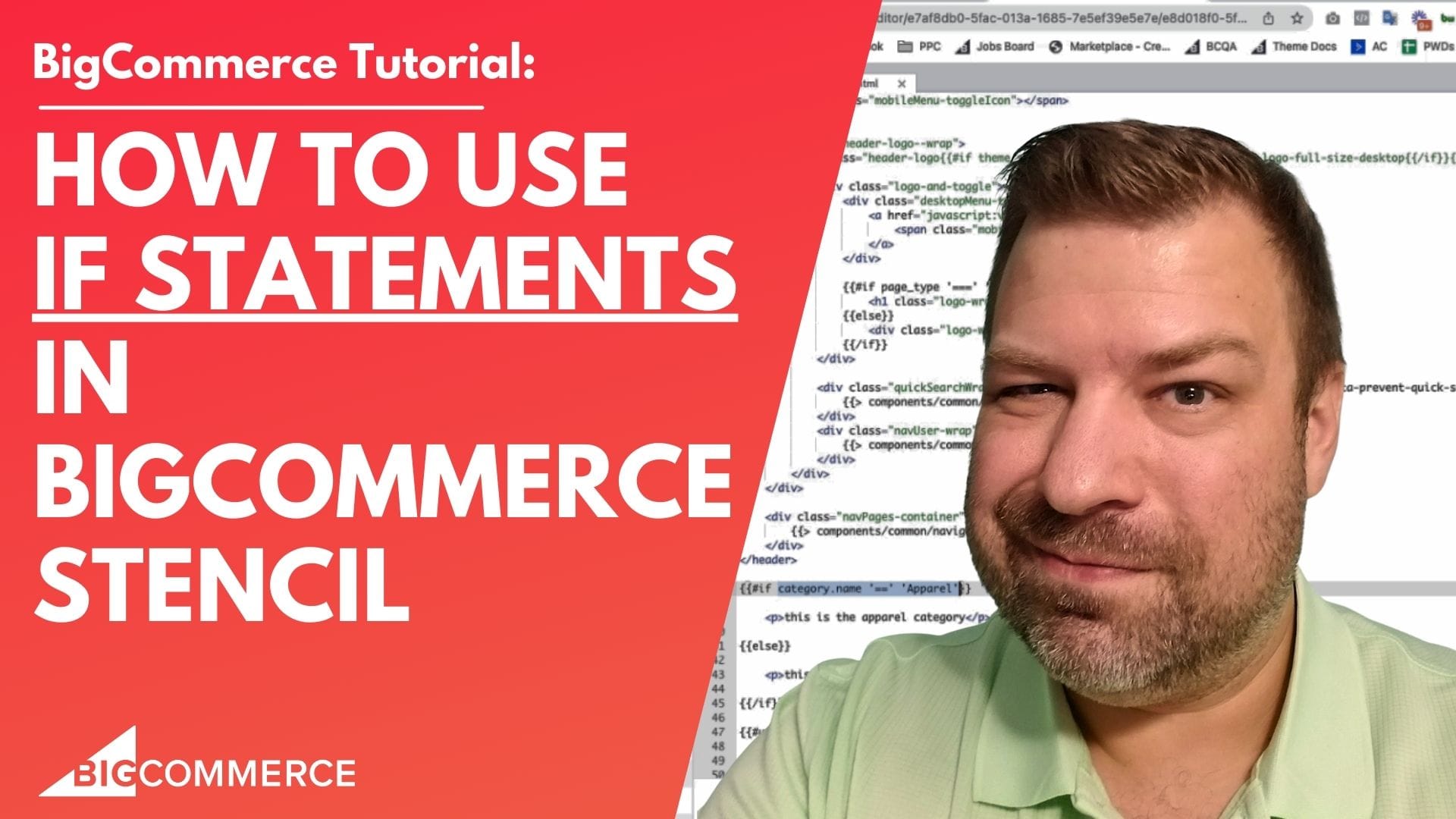
If you’re working on customizing a BigCommerce store, understanding how to use if statements in the Stencil framework is essential. In this tutorial video, I’ll guide you through the basics of using if statements, a fundamental programming concept, to control what content is displayed on your site.
What You’ll Learn in This Video
If statements allow you to conditionally display content based on specific criteria. Whether you’re a beginner or looking to sharpen your BigCommerce development skills, this video will teach you how to implement these statements and customize your store to display information dynamically. By the end of the video, you’ll know how to use if/else logic to show content depending on conditions like category or page type.
Why This Tutorial Matters
Customizing your BigCommerce store can help you tailor the shopping experience for your customers. Knowing how to effectively use if statements gives you control over how content appears based on conditions like product categories, page templates, and more. This is a powerful tool that will enable you to make your site more dynamic and user-friendly.
Ready to dive in? Check out the video below for a step-by-step guide on how to use if statements in BigCommerce Stencil.
Video Summary: How to Use If Statements in BigCommerce Stencil
Here’s a quick breakdown of the key points covered in the video:
- Introduction & Overview (00:02)
I introduce myself and explain the purpose of the video: teaching how to use if statements in BigCommerce. You’ll also get a brief overview of my eCommerce growth community, where I post more tips weekly. - Setting Up the Theme & If Statement Basics (00:30)
Learn how to set up your theme in BigCommerce by creating a copy and editing theme files. I also walk through the basics of if statement syntax in Stencil
({{#if}}and{{/if}}). - Basic If Statement Example (01:58)
I demonstrate how to display content conditionally, such as showing a message when the category name is “Apparel” using an if statement. - Adding an Else Statement (04:04)
Find out how to add an else statement to display alternate content when the condition is not met, enhancing the functionality of your if statement. - Conclusion & Community Invite (06:23)
I wrap up by summarizing the flexibility of if statements and invite viewers to join the eCommerce Growth community for more tips. I also encourage you to share what you’re struggling with so I can create more helpful content.
Watch the Full Tutorial
If you want to master if statements in BigCommerce and add dynamic content to your store, watch the full tutorial now. Don’t forget to subscribe to stay updated with weekly eCommerce tips and tricks to grow your store.
Full Transcript
(00:02)
Hey, you guys! Are you trying to figure out how to use if statements or what the heck if statements are in BigCommerce? Well, you’re in luck. In this video, I’m going to show you how.
Before we get started, my name is Cal. I’m a developer, store owner, and I run the eCommerce Growth Community for store owners like you. I’ll have a link at the end. Each week, I post videos about eCommerce, so if you find this one helpful, subscribe and hit the bell to see more.
Okay, I’m going to share my screen now.
(00:30)
We’re going to talk about if statements on BigCommerce. So, first of all, in this storefront, I have a theme. To customize a theme, you have to make a copy first. So if you’re working on an original theme, click “Make a Copy,” make that active, and then click “Edit Theme Files” to get into the Stencil editor.
If statements are the foundation of programming. They can be very basic or very advanced, depending on what you want to do. I’m going to show you the basics of how they work and how the syntax looks on BigCommerce.
To do this demo, we’re going into my theme and navigating to templates > components > common > header—just to give us a place to show off some if statement goodies.
(01:07)
An if statement says, “If this is true, then do this.” You can also add an “else” statement to say, “Or else do this other thing.”
The way this works in Stencil code is:
You start with curly braces, then type {{#if condition}}.
Then you put what happens when the condition is true.
Finally, you close it with {{/if}}.
Anything between those two lines will only run if the condition is true.
(01:58)
Let’s try it out. We’re going to say:
If the category name is “Apparel,” we’ll display “This is the apparel category.”
Here’s how that looks in code:
html
Copy code
{{#if category.name == "Apparel"}} <p>This is the apparel category.</p> {{/if}}
Now, let’s see it in action. Refreshing the frontend, you can see it output that sentence: “This is the apparel category.” If we go to a different page, like “Campsite,” it doesn’t show up because the category name isn’t “Apparel.”
(04:04)
Now, let’s add something else. We can include an else statement to display a different message when the condition isn’t met. Here’s how that looks:
html
Copy code
{{#if category.name == "Apparel"}} <p>This is the apparel category.</p> {{else}} <p>This is not the apparel category.</p> {{/if}}
On the “Apparel” category page, it still shows “This is the apparel category.” But on the “Campsite” page, it now says “This is not the apparel category.”
(05:09)
Obviously, I’m targeting just one thing by checking if the category is “Apparel.” But you could also say something like, “If the page type is ‘category,’ do this.” This would apply to all category pages but not to product pages or the homepage.
For example, on product pages, we might check, “If there’s a custom field, do this other thing.” Once you understand the basics of the if statement, there’s a lot of flexibility in what you can do with it.
(05:44)
To summarize, an if statement checks if something is true ({{#if condition}}) and then runs the corresponding code. You can add an else statement ({{else}}) to run different code if the condition isn’t met.
(06:23)
That’s the basic structure of an if statement. I’ll create more videos showing specific ways to use it, but this is a good starting point. If you’re just getting started with BigCommerce, this is pretty nifty.
Remember:
Start with {{#if}} to check a condition.
Use {{else}} for the alternative.
That’s about it! I hope this was helpful. Be sure to join our community at [join ecommercegrowth.com](https://join ecommercegrowth.com). If you need a developer, come to us at Epic Design Labs—we can do so much more than this. This is just scratching the surface.
(06:55)
Give me a comment, let me know what you’re going to do, and tell me what you’re stuck on. Every week, I’ll make more videos to help you guys get further with BigCommerce. Let me know what you’d like to see next. Thanks so much, and I’ll see you next time!

Related Resources
View All →
3 ways to Add or Edit a Carousel on BigCommerce
If you’re looking to enhance your BigCommerce store’s design with a sleek carousel or slideshow, you’re in the right place. \[…\]
Add a Free Gift with Purchase on BigCommerce
Looking for a way to boost customer loyalty and increase sales on your BigCommerce store? Offering a free gift with \[…\]
Add Products to the Homepage of Your BigCommerce Store
In this video tutorial, I walk you through two simple ways to add products to your BigCommerce store homepage, helping \[…\]
BigCommerce Sitemaps 101
Are you ready to supercharge your BigCommerce store’s SEO? If you’ve ever wondered about the ins and outs of sitemaps \[…\]
Edit the Newsletter Optin Block on BigCommerce
Are you looking to customize the “Subscribe to our Newsletter” box on your BigCommerce store? In this video, I walk \[…\]
Editing Custom Fields via CSV in BigCommerce
Are you looking to efficiently manage custom fields for your products in BigCommerce? Editing via CSV is a powerful method \[…\]
Editing Products via CSV in BigCommerce
Managing products in your BigCommerce store can become overwhelming as your inventory grows, but CSV editing makes bulk updates quick \[…\]
Getting Started with Product Images on BigCommerce
Are you struggling to upload product images to your BigCommerce store? In this video, Kal Wiggins, an ecommerce expert and \[…\]
High-Risk Permissions in BigCommerce
BigCommerce has continuously provided merchants with tools to bolster sales staff their e-commerce stores. One of the latest features to \[…\]