Adding webpages to your BigCommerce menu is an essential step in ensuring that your site is easy to navigate for your customers. Whether it’s an “About Us” page, “Contact” page, or any other content you’ve created, you want these links visible in your store’s main navigation.
In this video, I walk you through the quick steps to make your webpages show up in your BigCommerce menu. If you’re using the Cornerstone theme (the default for most BigCommerce stores), this guide will be especially useful. Even if you’re using a different theme, the process is likely similar. Watch the video below for the full tutorial.
Key Steps Covered in the Video:
- (00:01) – I introduce myself and the purpose of the video, which is to show how to add visible webpages to the menu in BigCommerce.
- (00:24) – Using the Cornerstone theme as an example, I explain how to check the visibility settings for webpages in the backend to ensure pages like About Us or Blog are marked as visible.
- (01:10) – I dive into the theme settings, explaining how to navigate to Themes > Customize in the BigCommerce admin panel.
- (01:50) – The fix: I show how to toggle off the Hide links to web pages setting under Header and Footer, which ensures the previously missing menu items will now appear.
- (02:08) – After making changes, I advise refreshing the front end of your store to see the newly visible menu items, reminding viewers to hit Publish to apply the changes.
Watch the Video Now!
This video will help you quickly resolve a common issue in BigCommerce. If you’ve been struggling to get your webpages to show up in your menu, this is the solution you need.
By following these steps, you can ensure your webpages are always visible, making your site easier for customers to navigate. Watch the full tutorial to get the details, and if you find it helpful, don’t forget to join my ecommerce community for more useful tips!
Full Transcript
(00:01)
Hey there! Are you looking to add your web pages to your BigCommerce menu but can’t figure out how to do it? You’re in luck! In this video, I’m going to show you how.
(00:10)
Before we get started, my name is Kal. I’m a developer and a store owner just like you, and I run the Ecommerce Growth Community for store owners just like us. Every week, I post more ecommerce videos. So if you find this one helpful, be sure to subscribe and hit the bell!
(00:24)
Now let me show you where to go. I’m going to demonstrate this within the context of the Cornerstone theme, which most of you are probably using. If you’re on a different theme, it might be the same or slightly different, but it should be fairly similar.
(00:35)
Here’s a BigCommerce sandbox store I have. You can see that I have web pages listed in the backend. To make these pages show up in your menu, you need to mark them as visible. For example, I have pages like About Us, Contact Us, and Blog marked visible, so they should appear.
(00:55)
However, if we look at the front end of the store, they’re not showing up in the menu. Don’t worry, this is a quick and easy fix. It’s just a Cornerstone theme setting, not something that requires any code. If this doesn’t work, you might need a developer, but let’s try this first.
(01:10)
Here’s what you do: Go to Themes and select Customize. When you click into the customizer, it brings you into the Page Builder section.
(01:29)
Now, there’s a button here labeled Theme Styles (you should be able to see my mouse hovering over it). Click on that, and you’ll find some old-school settings. We’re looking for a toggle under the Header and Footer section that says Hide links to web pages.
(01:50)
Simply untoggle that option, and now you’ll see that our missing menu items have reappeared in the menu! Don’t forget to hit Publish to make sure your changes go live.
(02:08)
It might take a few seconds or up to a couple of minutes for the changes to reflect on your site. Just refresh the page a couple of times, and they should show up.
(02:18)
Hopefully, this was a quick fix for you, and you found it helpful! If you did, please hit the Like button and consider joining our community of store owners at joinecommercegrow.com.
(02:36)
Thanks a lot, and I’ll see you in the next one!

Related Resources
View All →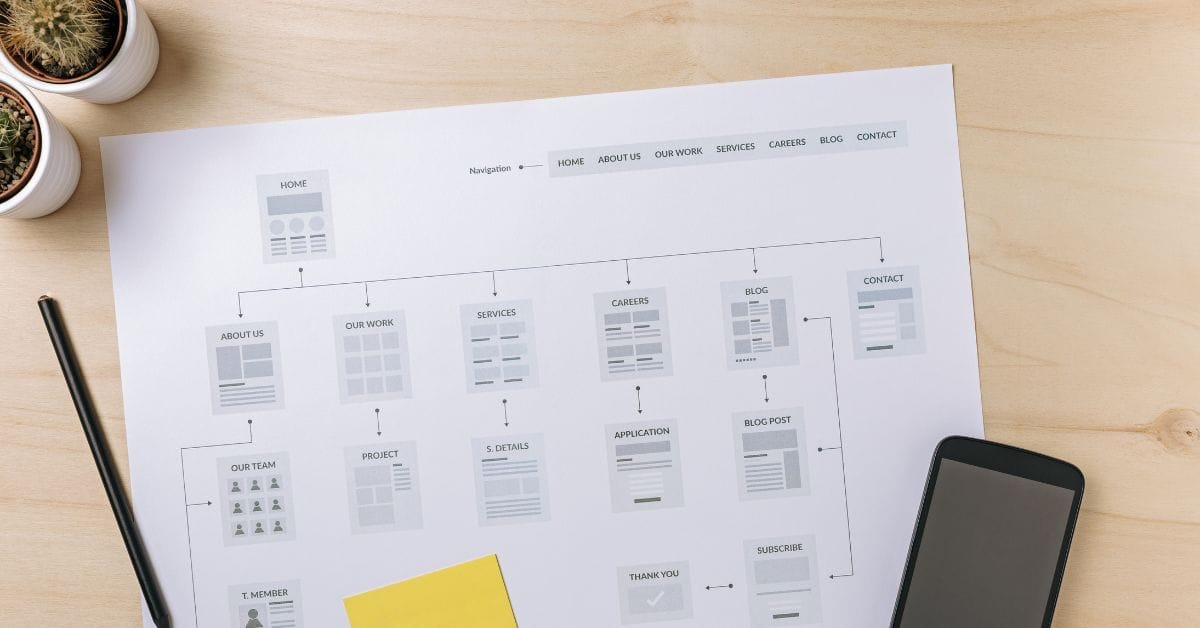
Where is the Sitemap on BigCommerce?
Are you trying to find your sitemap on BigCommerce but aren’t sure where to look? Whether you’re submitting your sitemap \[…\]
What size should your hero image be
In the vast realm of e-commerce, mobile images and web desChoosing the right size for your hero image is crucial \[…\]
What is the BigCommerce API
If you’ve been working in ecommerce, especially with BigCommerce, you’ve probably heard the term “API” thrown around. But what exactly \[…\]
What is BigCommerce Stencil?
If you are still using the BigCommerce Blueprint theme framework, it’s high time that you switched over to their new \[…\]
Welcome to Epic Page Builder Widgets
If you’re running an ecommerce store on BigCommerce, streamlining your page design without the constant need for developers is crucial. \[…\]
Stencil Local Development – Walkthrough
If you’re looking to develop on BigCommerce, using Stencil Local Development is a game-changer. In this video, I walk you \[…\]
Remove Powered by BigCommerce Link
If you’re running a BigCommerce store and want to remove the Powered by BigCommerce link at the bottom of your \[…\]
Page Builder Fields In Raw HTML BigCommerce Page Template
Are you trying to create custom landing pages on BigCommerce but struggling with how to use Page Builder fields in \[…\]
Most Popular Products on BigCommerce
Understanding Top Sellers and Customizing Your Store If you’re wondering how to display BigCommerce’s most popular products feed on your \[…\]