If you’re running a BigCommerce store and want to remove the Powered by BigCommerce link at the bottom of your site, you’re not alone. Many store owners prefer a cleaner footer without branding from the platform. Luckily, if you’re using the Cornerstone theme (the most commonly used theme), it’s a quick and simple process.
In the video below, I walk you through the exact steps to remove the link, including a couple of tips for those using other themes. This tutorial is perfect for anyone who wants to make their store look more professional in just a few clicks.
Video Summary:
- (00:00) – Quick introduction to removing the Powered by BigCommerce link using the customizer.
- (00:10) – Access the customizer by navigating to Storefront > Themes and clicking Customize.
- (00:30) – Notes for non-Cornerstone theme users: you may need to use CSS or code for removal.
- (00:45) – Inside Theme Styles, go to Header and Footer and uncheck Show Powered by BigCommerce.
- (01:06) – Final step: Click Publish to save your changes and remove the link permanently.
By following these steps, you’ll have a cleaner, more professional-looking footer in just a couple of minutes. If you encounter any issues or are using a theme that doesn’t support this option, feel free to reach out. I’m happy to help!
Need more assistance with your BigCommerce store? Contact me at Epic Design Labs, and we’ll take your store to the next level.
Full Transcript
(00:00)
“Hey there! Are you trying to remove the Powered by BigCommerce link at the bottom of your site? Let me show you how to do that.
Real quick—oh wait, let me actually share my screen. Okay, so this is what we’re looking at right here—Powered by BigCommerce. And this is a really easy one to remove.
You just go to Storefront > Themes, click Customize to go into the customizer.
(00:30)
Now, this is assuming you’re on the Cornerstone theme. If you’re using a different theme, it might technically be a little different. And if they don’t have this option on your theme, then you might need to go into the code or use CSS. But most people are using Cornerstone, so let me show you.
Just come in here to Theme Styles, click on Header and Footer, and scroll down to find the option.
Right here, you’ll see Show Powered by BigCommerce. You can simply uncheck that, and it’ll refresh. You’ll see the link is gone!
(01:06)
Finally, just click Publish up here at the top. And that’s it! The customizer makes it super easy.
So, this was a quick and easy one. Leave me a comment and let me know what you’re stuck on. And if you need a developer for your store, reach out to me at epicdesignlabs.com.
My name is Kal, and I’ll see you in the next one.”

Related Resources
View All →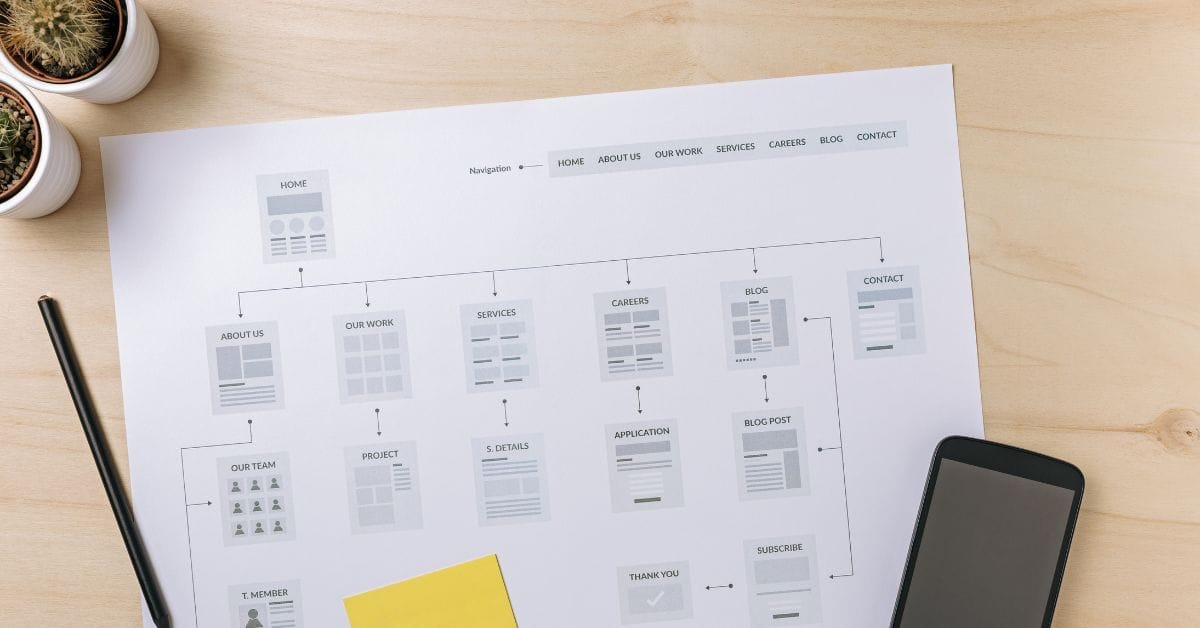
Where is the Sitemap on BigCommerce?
Are you trying to find your sitemap on BigCommerce but aren’t sure where to look? Whether you’re submitting your sitemap \[…\]
What size should your hero image be
In the vast realm of e-commerce, mobile images and web desChoosing the right size for your hero image is crucial \[…\]

What is the BigCommerce API
If you’ve been working in ecommerce, especially with BigCommerce, you’ve probably heard the term “API” thrown around. But what exactly \[…\]
What is BigCommerce Stencil?
If you are still using the BigCommerce Blueprint theme framework, it’s high time that you switched over to their new \[…\]
Welcome to Epic Page Builder Widgets
If you’re running an ecommerce store on BigCommerce, streamlining your page design without the constant need for developers is crucial. \[…\]
Stencil Local Development – Walkthrough
If you’re looking to develop on BigCommerce, using Stencil Local Development is a game-changer. In this video, I walk you \[…\]
Page Builder Fields In Raw HTML BigCommerce Page Template
Are you trying to create custom landing pages on BigCommerce but struggling with how to use Page Builder fields in \[…\]
Most Popular Products on BigCommerce
Understanding Top Sellers and Customizing Your Store If you’re wondering how to display BigCommerce’s most popular products feed on your \[…\]
Migrating from Blueprint to Stencil on BigCommerce
Are you still using the Blueprint framework on BigCommerce and wondering if it’s time to upgrade to Stencil? If BigCommerce \[…\]