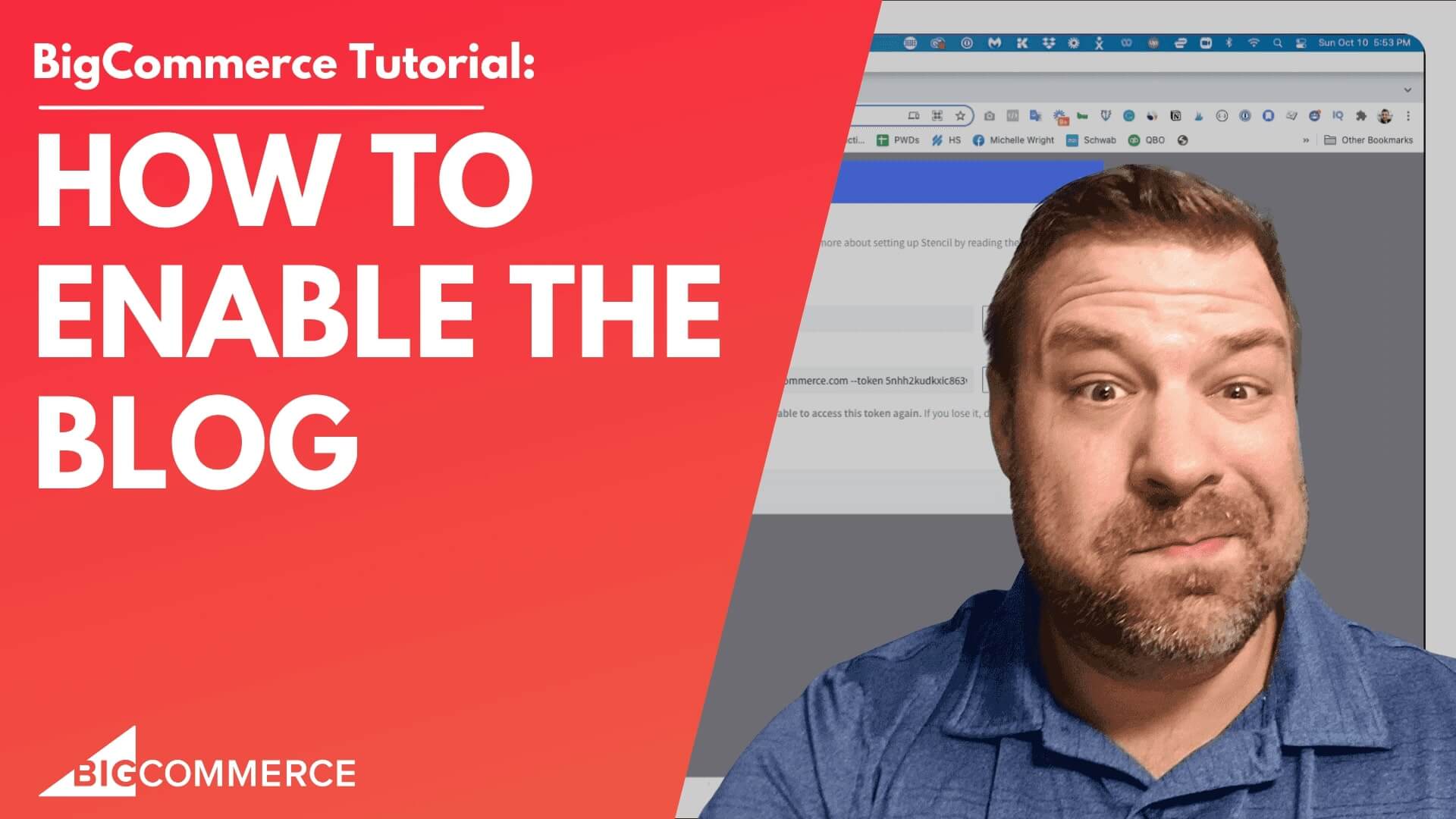
If you’re running a BigCommerce store and want to activate or optimize your blog, you’re in the right place. In this video, Kal walks you through enabling the blog feature, customizing its settings, and improving its appearance—all in a few simple steps. Watch the full video to see the entire process in action and follow along with the transcript below for quick reference.
What You’ll Learn in This Video:
- How to turn on the built-in BigCommerce blog.
- Renaming your blog to make it more engaging.
- Removing the blog from the main menu without editing code.
- Resizing blog images for a professional look.
- Ensuring that the blog content fits seamlessly with your store’s design.
Don’t have time to watch the whole video? Check out the summary below to get the key points and timestamps so you can jump to the parts that matter most to you.
Video Summary
Here are the main takeaways from the video with timestamps so you can quickly skip to any section:
- (00:00-00:31): Kal starts by showing you how to enable your BigCommerce blog. Head to Storefront > Web Pages, find the “Blog” section, and toggle it on. Once enabled, the blog overview page is active on your site.
- (01:26-01:56): Don’t want your blog labeled “Blog”? Kal walks through how to rename it to something more modern like “Articles.” You can do this with just a few clicks in the settings menu.
- (03:02-04:36): If you prefer to keep your blog out of the main navigation menu, Kal explains how to use a simple CSS trick to hide it. This approach is clean and doesn’t mess with your site’s code.
- (05:06-06:44): One key improvement to make your blog visually appealing is resizing the images. Kal shows you how to increase the blog image size in your theme’s settings, making the page look much more professional.
- (07:25): Kal wraps up by encouraging viewers to ask questions and leave comments. He’s always looking for ideas for his next video, so if you’re struggling with something, drop a comment!
Why Watch This Video?
This video is a must-watch if you’re looking to quickly activate and polish your BigCommerce blog. Kal delivers practical, no-fluff tips that can save you time and help you get the most out of your blog feature.
Get Started Now!
Ready to make your BigCommerce blog work for you? Click play on the video above and follow Kal’s simple guide to enable, rename, and enhance your blog.
Full Transcript
(00:00)
Hey there! In this video, I’m going to show you how to turn on or publish your BigCommerce blog.
Before we get started, my name is Cal, and if you find this useful, hit subscribe, and I’ll show you more cool stuff over time! Alright, let me share my screen.
When you come into your BigCommerce store, you’ve probably already discovered this under Storefront > Web Pages. There’s an item here that says “Blog” and, at least right now, it’s got a red X next to it, meaning it’s not showing up.
(00:31)
In the dynamic menu, it says “built-in blog” and “blog,” but let’s be honest, nobody really wants to call their blog “blog” anymore—unless you do! In that case, blog on, bro.
Let’s do a couple of things.
Click into the blog, which takes you to Storefront > Blog. As you can see, I’ve already written a couple of sample posts.
To turn the blog on, just hit this little toggle here, and boom—it’s on.
Technically, all the articles were already exposed and may have been indexed by Google, but the blog overview page itself (the homepage of your blog) is what was hidden. Now that’s turned on and active.
If this isn’t toggled, that overview page doesn’t exist and will return a 404 error if anyone tries to visit it.
(01:26)
One thing I’ll show you real quick: Maybe you don’t want to call it “blog” because that’s very 2005. Let’s rename it.
Click the three dots (I know I did that a bit fast) and rename it to “Articles” or whatever you prefer.
You can also tweak other settings, like turning on Disqus for comments or enabling social sharing, but I’m going to skip those for now. Just click “Save,” and we’ve renamed the blog to “Articles.”
(01:56)
Now, when we go back to the Web Pages menu, you’ll see it says “Articles” instead of “Blog.”
It’s still a “built-in blog” page type, but we’ve got a green checkmark, meaning it should now show up in our menu. Let’s check the front-end of the site, and you can see “Articles” is now showing in the menu.
(02:31)
When we visit the Articles page, the blogs show up. Though admittedly, they don’t look super great right now.
The biggest issue you’ll likely want to fix is making the images not, well, stupid-sized. Let me show you how to do that real quick.
(03:02)
I also want to show you how to remove Articles from the main menu. A lot of you might want your blog page active, but prefer to link it in the top bar, footer, or elsewhere—without using up your valuable main menu space.
There are two ways to do this:
You can go into your header files and comment it out.
A cleaner way is to use CSS to target the specific item and hide it.
(03:32)
Let’s inspect the element to target it. The nav page items all have the same class, and the anchors within them also share a class, so what’s different? The ARIA labels and the hrefs. These are useful, especially for ADA compliance. If you’re not ADA compliant, consider reaching out to someone who can help with that.
Click the “plus” sign, and it’ll target the nav Pages – action class. However, to be more specific, I’ll copy the ARIA label and add it as an attribute selector. I’ll test it by applying a background color to confirm we’re targeting the correct item.
Once confirmed, set the display to “none,” and the menu item will be hidden.
(04:36)
You can paste this CSS into your file. If you don’t have ARIA labels, you can target it by href instead, but note that this method is more fragile if URLs change.
(05:06)
Lastly, let me show you how to make those blog images bigger, which is super easy.
A lot of people think the blog looks bad, and while that’s partly true, fixing the image sizes goes a long way. Let me show you how to make them bigger.
Go to Storefront > Themes, click Customize, then select the art palette icon. Go to Global settings. Depending on your theme, this may look different. If you’re using Cornerstone or Roots, which are good themes, you should see a setting for Blog image size. If not, some sketchier themes might not have this option.
(06:06)
In Cornerstone, go to Global, and scroll down until you see Blog Image Size. Here, you can choose between “Optimize for Theme” or “Specify Dimensions.”
Let’s specify dimensions. The problem right now is that the max width is set to 190 pixels, which is way too small. Let’s change that to 1200 pixels. I’ll also set the max height to 628 pixels, and then hit “Publish.”
(06:44)
Now, even in the previewer, you can see the images look a million times better just by increasing their size. I’m not sure why they don’t set this as the default, but at least we’ve got it fixed.
(07:25)
So, those are a few quick things you can do to turn on your blog and make it look more presentable in no time flat.
Leave me a comment and let me know what you’re struggling with—maybe it’ll be the topic of my next video.
I appreciate you guys being here, thanks!

Related Resources
View All →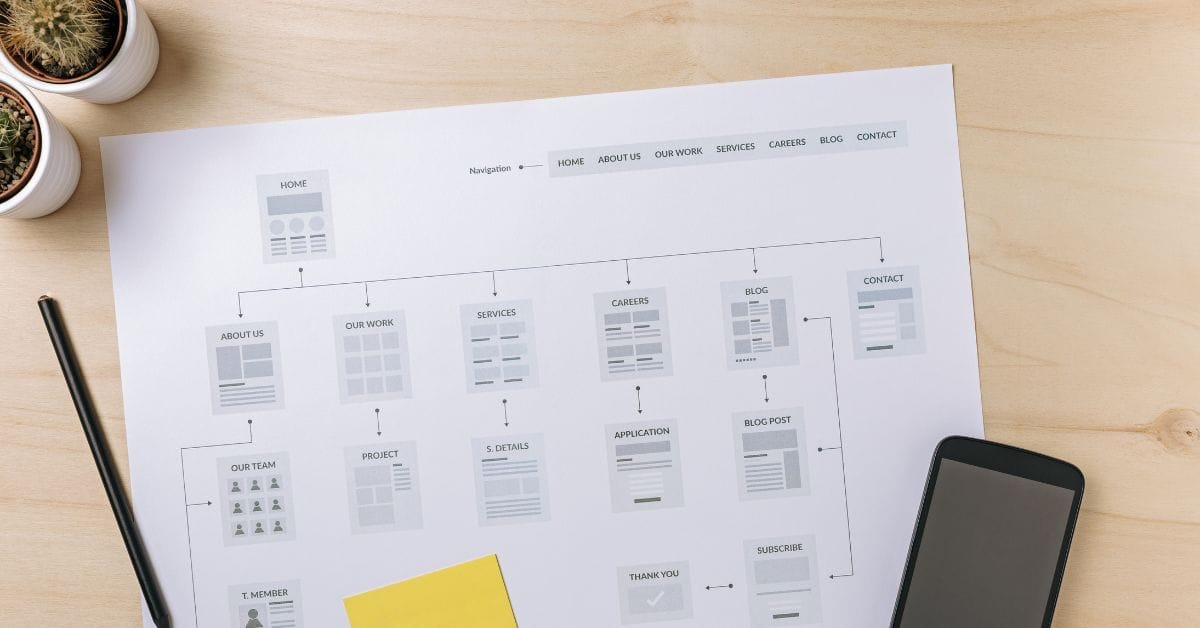
Where is the Sitemap on BigCommerce?
Are you trying to find your sitemap on BigCommerce but aren’t sure where to look? Whether you’re submitting your sitemap \[…\]
What size should your hero image be
In the vast realm of e-commerce, mobile images and web desChoosing the right size for your hero image is crucial \[…\]
What is the BigCommerce API
If you’ve been working in ecommerce, especially with BigCommerce, you’ve probably heard the term “API” thrown around. But what exactly \[…\]
What is BigCommerce Stencil?
If you are still using the BigCommerce Blueprint theme framework, it’s high time that you switched over to their new \[…\]
Welcome to Epic Page Builder Widgets
If you’re running an ecommerce store on BigCommerce, streamlining your page design without the constant need for developers is crucial. \[…\]
Stencil Local Development – Walkthrough
If you’re looking to develop on BigCommerce, using Stencil Local Development is a game-changer. In this video, I walk you \[…\]
Remove Powered by BigCommerce Link
If you’re running a BigCommerce store and want to remove the Powered by BigCommerce link at the bottom of your \[…\]
Page Builder Fields In Raw HTML BigCommerce Page Template
Are you trying to create custom landing pages on BigCommerce but struggling with how to use Page Builder fields in \[…\]
Most Popular Products on BigCommerce
Understanding Top Sellers and Customizing Your Store If you’re wondering how to display BigCommerce’s most popular products feed on your \[…\]