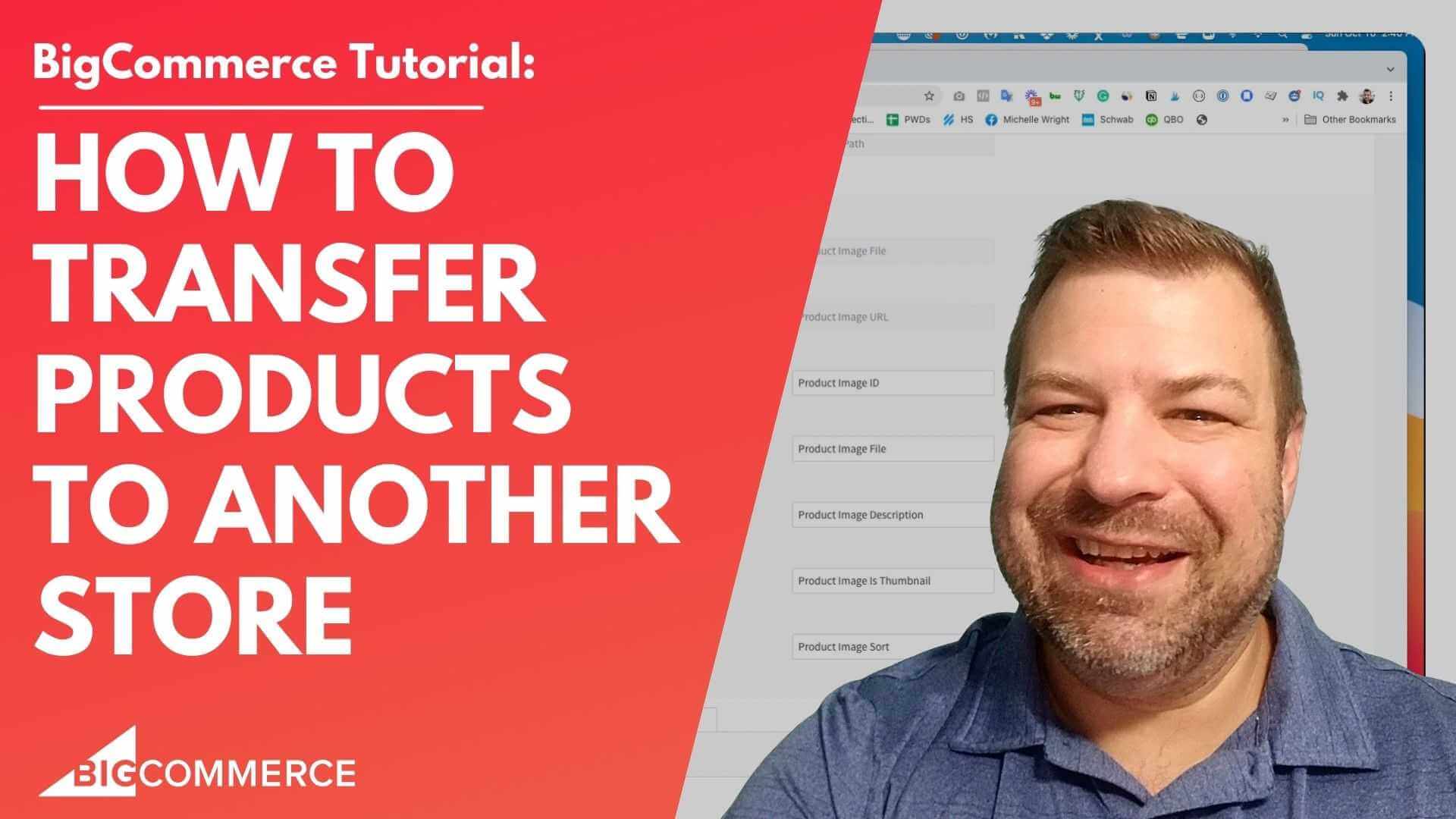
If you’re trying to transfer products from one BigCommerce store to another, you might be running into issues with missing product photos, failed imports, or simply not knowing where to start. Fortunately, there’s an easy and cost-effective way to handle this using BigCommerce’s CSV export and import functions. In this video tutorial, I’ll guide you step-by-step on how to transfer all your products between stores without running into common errors.
Whether you’re moving stores due to a rebrand, restructuring your eCommerce setup, or simply consolidating multiple stores, this method works great for stores with fewer products. Plus, it avoids the extra costs of hiring a developer or purchasing an app.
Watch the Video Below to Learn:
- How to create a custom CSV export from your original store.
- The exact steps to import products into your new store.
- Troubleshooting common issues like missing product photos or mismatched product IDs.
- How to ensure your store’s user interface versions match to avoid complications.
Video Summary (with Timestamps)
If you’re short on time, here’s a quick breakdown of what’s covered in the video, so you can jump to the most relevant sections:
- Introduction to Product Transfer (00:03)
A high-level overview of transferring products between BigCommerce stores, explaining the challenges with product photos and how CSV export/import solves most issues. - Matching UI Versions (01:39)
Before starting, it’s critical that both the source and destination stores are on the same user interface version (V2 or V3). Kal explains how mismatched UIs can cause issues and how to fix them. - Creating a Custom Export Template (02:54)
Step-by-step guide on setting up a custom export template, removing product IDs to prevent errors during import, and adjusting the settings for transferring product images correctly. - Executing the Export and Import Process (07:26)
Detailed walkthrough on exporting your products using the custom template, importing them into your new store, and ensuring all columns map correctly for a smooth import process. - Handling Errors and Final Checks (10:04)
Tips for troubleshooting errors during the import, including how to review error messages and successfully transfer all product data, including categories and images.
By the end of the video, you’ll know exactly how to transfer your BigCommerce products with minimal fuss and zero additional cost. If you find the video helpful, don’t forget to subscribe to my channel for more eCommerce tutorials and tips!
Full Transcript
(00:03)
Hello! Are you looking to transfer all of your BigCommerce products from one store to another? Whether you’re unsure where to start, getting stuck during the process, or facing issues like missing product photos—this video is for you. I’m going to show you how to transfer your products using CSV export and import. There are other methods, like using APIs or apps, but they can cost money. The CSV method is great for stores that don’t have many products. For most of you, this method will work just fine, and it’s simple once you know how to do it.
(01:02)
Before we dive in, my name is Kal. I’m a developer, a store owner, and I run a private community for store owners called Ecommerce Growth. Each week, I post videos about eCommerce. If you find this video helpful, please subscribe and hit the bell to see more. Now, let’s get started.
(01:39)
A quick note: At the time of this recording, BigCommerce has multiple product user interfaces, referred to as V2 and V3. New stores are currently using V3, while legacy stores may still be on V2. The important thing to remember is that the UI version matters when transferring products. If your source store is on V2 and your destination store is on V3 (or vice versa), you may face issues. If that’s the case, you can contact BigCommerce and ask them to manually align the UIs to ensure a smooth transfer.
(02:20)
In this video, you’ll see the V3 UI, which appears as a long one-pager with tabs on the side. If your store has tabs across the top, you’re on V2. Make sure both stores are on the same UI before continuing. Now that we’ve covered that, let’s get into the steps.
Step-by-Step Process:
Export Products from Your Old Store
(02:54)
To transfer products, we’ll do a custom product export and then import them into the new store. Here’s how to create the export:
Go to Advanced Settings > Export Templates.
Start by copying the Bulk Edit Export template.
(You can’t use this template directly for two reasons:
a) It includes product IDs that will cause errors during import.
b) We need to tell the new store to import the product images.)
Name the new template (e.g., “Transfer Products”).
Customize the Export Template
(05:07)
In the new template:
Leave the first tab as is.
On the Products tab, uncheck Product ID to avoid errors.
Scroll down to the Product Images section.Uncheck Product Image ID and Product Image Path.
Change Product Image URL to Product Image File (this is case-sensitive).
Once this is set, save and exit. Now, you have a customized export template ready to use.
Export the Products
(07:26)
Go to Products > Export, and select your new template (e.g., “Transfer Products”).
Click “Export my products to a CSV file” and wait for the download.
Import Products to the New Store
(08:26)
In the new store (which should have no products), go to Products > Import.
Upload the CSV file and check the box that says the file was exported using the Bulk Edit Template (even though it wasn’t exactly, the column structure matches).
Click Next and verify that the columns map correctly. Then, click Start Import.
Depending on the number of products, this can take anywhere from seconds to an hour.
Common Issues and Fixes:
(10:04)
If you encounter errors during import, check the error messages. There will usually be a link next to the error for more details. It’s important to read these to understand what went wrong.
Once the import completes successfully, you can check your products. You might see “image coming soon” placeholders for products that don’t have images, but for products that do, the images should import correctly. The categories from the old store should also transfer over.
Conclusion:
(11:12)
That’s how you transfer all of your products from one BigCommerce store to another using the CSV method. If you found this video helpful, hit the like button and join our free community of eCommerce store owners at ecommercegrowth.com. If you’re looking for a dev team for your store, reach out to us at Epic Design Labs. I’m always looking for ways to help you out, so if you’re struggling with something, leave a comment below. Thanks for watching, and I’ll see you next time!

Related Resources
View All →
Where is the Sitemap on BigCommerce?
Are you trying to find your sitemap on BigCommerce but aren’t sure where to look? Whether you’re submitting your sitemap \[…\]

What size should your hero image be
In the vast realm of e-commerce, mobile images and web desChoosing the right size for your hero image is crucial \[…\]
What is the BigCommerce API
If you’ve been working in ecommerce, especially with BigCommerce, you’ve probably heard the term “API” thrown around. But what exactly \[…\]

What is BigCommerce Stencil?
If you are still using the BigCommerce Blueprint theme framework, it’s high time that you switched over to their new \[…\]

Welcome to Epic Page Builder Widgets
If you’re running an ecommerce store on BigCommerce, streamlining your page design without the constant need for developers is crucial. \[…\]

Stencil Local Development – Walkthrough
If you’re looking to develop on BigCommerce, using Stencil Local Development is a game-changer. In this video, I walk you \[…\]

Remove Powered by BigCommerce Link
If you’re running a BigCommerce store and want to remove the Powered by BigCommerce link at the bottom of your \[…\]

Page Builder Fields In Raw HTML BigCommerce Page Template
Are you trying to create custom landing pages on BigCommerce but struggling with how to use Page Builder fields in \[…\]

Most Popular Products on BigCommerce
Understanding Top Sellers and Customizing Your Store If you’re wondering how to display BigCommerce’s most popular products feed on your \[…\]