Are you looking for a way to remove a category from your BigCommerce menu without breaking existing links or causing 404 errors? In this quick tutorial video, I’ll show you an easy method to hide a category from the menu while keeping the page live and functional for any incoming traffic.
This is a crucial fix if you want to maintain the user experience, avoid losing PPC or SEO traffic, and eliminate the need to hire a developer. Watch the video below to learn how.
Why It Matters
Simply marking a category as hidden in BigCommerce can unintentionally turn your category page into a 404 error. If your site gets organic traffic or paid ads pointing to that category, this can lead to lost revenue and poor customer experience. However, with the easy workaround I demonstrate in the video, you can keep your category live without it appearing in the menu.
What You’ll Learn:
Here’s a summary of what I cover in the video, including timestamps:
- (00:02) Introduction to removing a category from the menu without causing a 404 error. Many users encounter broken links when they try to hide a category.
- (00:33) Explanation of how BigCommerce handles category visibility, turning hidden categories into 404 errors if not done correctly, which can hurt your site’s traffic.
- (01:41) Two possible solutions: either hiring a developer for custom CSS or using a simple built-in method to avoid breaking links.
- (02:15) Step-by-step tutorial on how to hide a category by creating a parent category (e.g., “Sale”) and moving the desired category under it while keeping it hidden from the menu.
- (03:20) Demonstration of how this method allows your category page to remain live while it’s removed from the menu—without needing a developer’s help.
By following this simple strategy, you can manage your BigCommerce menu more effectively and ensure that your category pages stay accessible, preserving valuable traffic and maintaining the integrity of your website.
If this guide helps you, be sure to subscribe to my YouTube channel for more tutorials.
Full Transcript
(00:02)
Hey! Are you guys trying to remove something from your category menu in BigCommerce, but you don’t want to break the link? In this video, I’m going to show you how to do just that.
Before we get started, my name is Kal. I’m a developer and a store owner just like you, and I run the E-commerce Growth Community on Facebook. Each week, I post more videos, so if you like this one, subscribe and hit the bell. Blah blah blah, let me show you how to do it.
I’m going to go to my screen now.
(00:33)
This is just a plain version of the Cornerstone theme. In the main menu, we have categories like Fish Food, Fish and Plant Care, and Pond Maintenance. Right now, we’re looking at the Fish Food category.
If we want to remove this category from the menu, we’ll go to Products and then Product Categories. Here, you’ll see all the categories with green check marks, which means they’re in the menu. But there’s something you need to know about BigCommerce. If we mark a category as not visible in the menu, BigCommerce makes it invisible everywhere—not just in the menu.
(01:07)
By marking this as “X” (removing it from the menu), it’s going to disappear from the menu. But watch what happens when I refresh the page: It’s gone from the menu, but it also turned the category page into a 404 error. That’s a big problem if you have links coming to it from PPC traffic, Google, or anywhere else. You don’t want your page to 404, right?
So, we want to remove it from the menu, but we don’t want to hire a developer every time we make a small change.
(01:41)
There’s actually a really easy way to do this in BigCommerce. Now, you could hire a developer to remove the category from the menu using custom CSS—it’s not that hard, but it does require a developer. But here’s a sneaky, easier way to handle it:
First, go to Products > Categories, and create a new category. You can call this anything you want, but let’s call it “Sale” for now. Click Save and Exit.
Now, I don’t want the “Sale” category to show up in the menu either, so I’m going to uncheck it. Then, I’ll go back to the Fish Food category and check it again to make it live.
Next, drag the Fish Food category underneath the Sale category. Now, the parent item (Sale) is hidden, but the child item (Fish Food) is still visible—but it won’t appear in the menu, since it’s nested under Sale, which isn’t visible.
(02:46)
Now, when you refresh the page, the Fish Food category page is still live, but it’s no longer visible in the menu. You’ve effectively removed it from the menu without breaking the link!
You can call the parent category whatever you want—it doesn’t matter. But now, we’ve solved the problem of hiding the category without breaking anything.
(03:20)
This is something I’ve shown people over and over on BigCommerce. It’s really easy, and it’s been possible for over a decade. I don’t even know if you could call this a hack, but it’s a super helpful trick once you know how to do it.
Hopefully, this helped you out! If it did, make sure to subscribe, hit the bell, and check out more of my videos. You can also join my Facebook group, E-commerce Growth, at ecommercegrowth.com. If you need help with your store, feel free to hit me up at Epic Design Labs.
I really appreciate you guys, and we’ll talk soon. Thanks!

Related Resources
View All →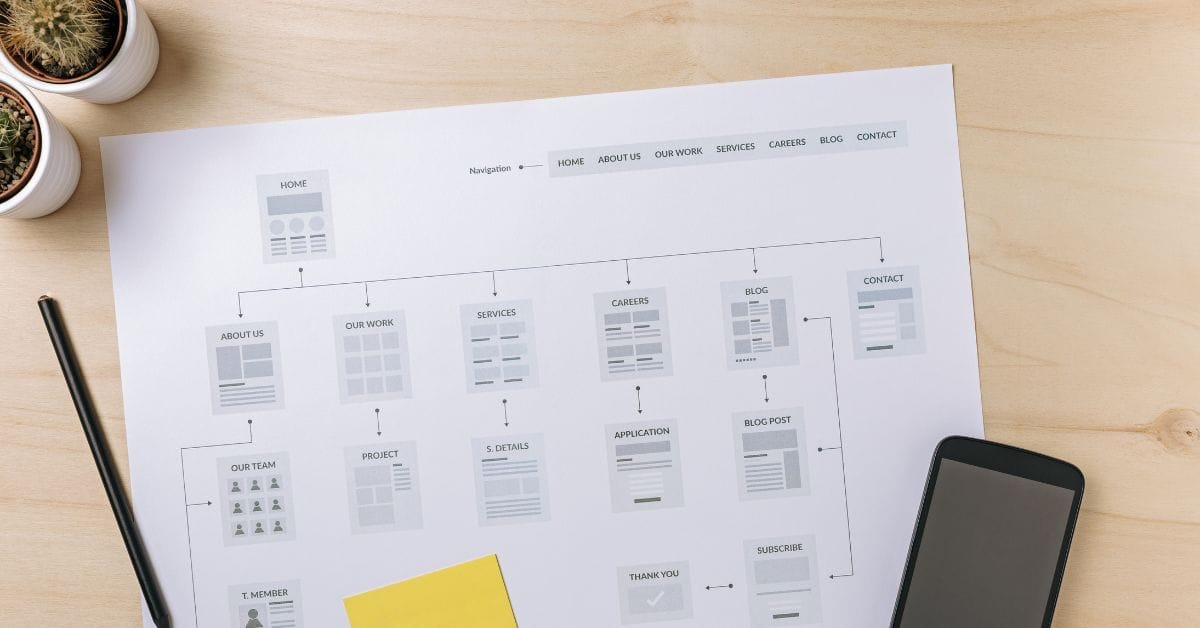
Where is the Sitemap on BigCommerce?
Are you trying to find your sitemap on BigCommerce but aren’t sure where to look? Whether you’re submitting your sitemap \[…\]
What size should your hero image be
In the vast realm of e-commerce, mobile images and web desChoosing the right size for your hero image is crucial \[…\]
What is the BigCommerce API
If you’ve been working in ecommerce, especially with BigCommerce, you’ve probably heard the term “API” thrown around. But what exactly \[…\]
What is BigCommerce Stencil?
If you are still using the BigCommerce Blueprint theme framework, it’s high time that you switched over to their new \[…\]
Welcome to Epic Page Builder Widgets
If you’re running an ecommerce store on BigCommerce, streamlining your page design without the constant need for developers is crucial. \[…\]
Stencil Local Development – Walkthrough
If you’re looking to develop on BigCommerce, using Stencil Local Development is a game-changer. In this video, I walk you \[…\]
Remove Powered by BigCommerce Link
If you’re running a BigCommerce store and want to remove the Powered by BigCommerce link at the bottom of your \[…\]
Page Builder Fields In Raw HTML BigCommerce Page Template
Are you trying to create custom landing pages on BigCommerce but struggling with how to use Page Builder fields in \[…\]
Most Popular Products on BigCommerce
Understanding Top Sellers and Customizing Your Store If you’re wondering how to display BigCommerce’s most popular products feed on your \[…\]